JPG to Vector Conversion in USA: 2026 Service Walkthrough
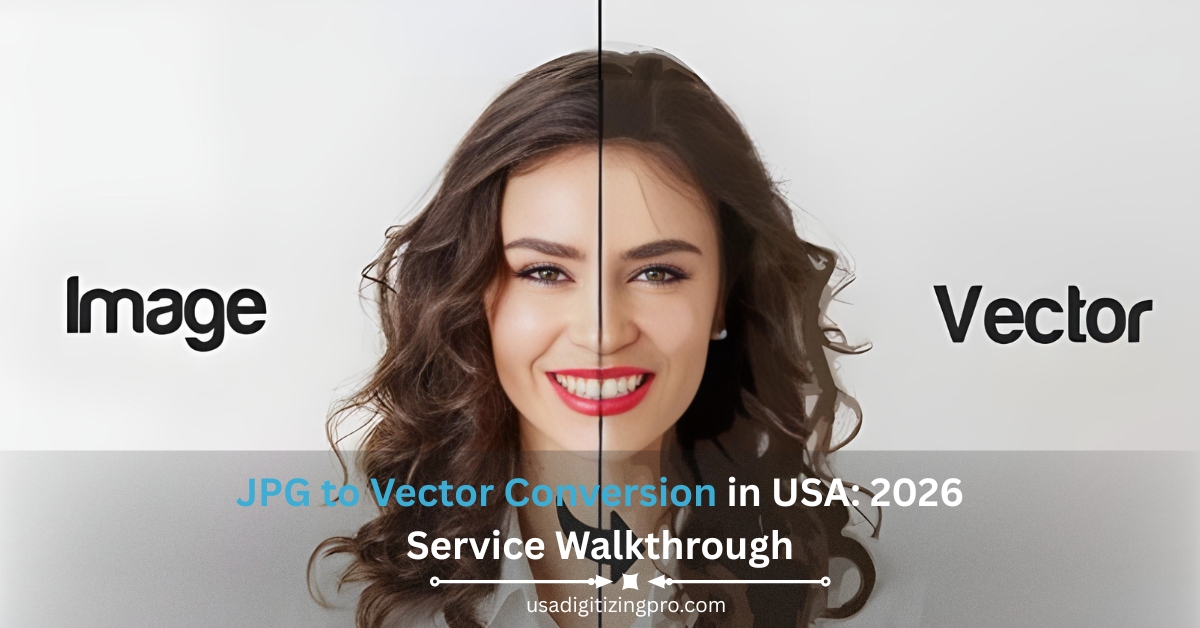
You uploaded your logo to a printer. The proof came back blurry. Or the embroiderer asked for a vector file and you stared at the email confused. Most JPG files were never built for print or stitch work. Pixels stretch. Edges blur. Colors shift. JPG to vector conversion fixes all of that. It rebuilds your image from a pixel grid into clean math-based paths that scale to any size without quality loss. This post walks through the conversion service at USA Digitizing Pro. Pricing. Turnaround. The output files you receive. And why the human-traced approach beats the auto-tool route most designers reach for first.
Quick Answer at a Glance
Converting raster to vector means trading a pixel grid for a math defined path. The path scales infinitely while the pixel grid does not.
At USA Digitizing Pro, every conversion is handled by a trained vector artist to ensure clean, scalable and production-ready artwork.
Supported Formats: AI, EPS, PDF, SVG, CDR
Turnaround Time: 2 to 4 hours for simple logos
Same-Day Delivery: Available for orders placed before 3 PM Central Time
Raster to Vector Conversion Process
| Stage | What Happens | Time |
| 1. File Upload | Send your JPG along with notes on use case and final output size. | ~5 min |
| 2. Audit | A vector artist reviews source resolution and design complexity. | ~15 min |
| 3. Manual Trace | Pen-tool paths drawn over the source image by hand. | 1 to 3 hrs |
| 4. Color Setup | PMS matching, layer naming, palette cleanup. | ~20 min |
| 5. Export | AI, EPS, PDF, SVG, and CDR delivered in one ZIP. | ~5 min |
| 6. Delivery | Final files emailed or uploaded to your account portal. | Instant |
What Vector Conversion Actually Means
A JPG holds pixels. Each pixel has a fixed color value sitting on a grid. The grid has a fixed resolution. Zoom in and you see jagged edges and color bleed.
A vector file holds paths. Each path is described by mathematical curves and anchor points. There’s no grid behind it. The math redraws cleanly at any size, on any output device, from a business card up to a billboard.
The conversion takes the visual content of a JPG and rebuilds it as paths inside a vector file. The output runs through industry-standard vector software like Illustrator and CorelDraw with crisp edges every single time.
Why JPG Files Fail for Print, Embroidery, and Signage
Three industries reject JPG files almost universally. Screen printers need vector for spot-color separation. Embroidery digitizers need vector for clean stitch path generation. Large-format printers need vector for scale flexibility. Send a JPG to any of these and you’ll usually hear a request for AI or EPS in reply.
The reasons stack up fast. Print bureaus need 300 dpi or vector at output size. JPG compression introduces artifacts that print as blurry zones. Color separation tools cannot isolate cleanly from a pixel grid with anti-aliased edges. Embroidery digitizing software cannot generate stitch direction reliably from raster data. Sign printers need every edge to look sharp at six feet wide, and pixels just don’t scale that far.
Manual Conversion Versus Free Auto Tools
A few free websites promise instant raster to vector conversion. They use auto-tracing algorithms. The result looks acceptable on a quick preview. It often falls apart under real print conditions.
Auto-tracing struggles with these specific things. Small text below 5 mm tall gets pixelated edges. Anti-aliased curves get jagged conversion. Colors blend into each other instead of separating cleanly. Thin lines disappear or duplicate themselves. Gradients turn into a checkered mess.
A trained vector artist does the work differently. The artist opens the source JPG in a vector tool and lays a new path on top by hand. Each curve gets two anchor points placed for clean Bezier control. Every color region gets its own layer. Each text element gets retyped as live text using the closest font match. Output looks like a brand-fresh design file rather than a sloppy auto-trace.
When auto-tools work fine
Auto-tools work for very simple logos. Two colors. Bold shapes. No tiny text. No gradient. If your logo fits that bill, a free converter saves you money. For anything beyond that, the manual route pays for itself in print fidelity.
When manual is non-negotiable
Manual conversion becomes a hard requirement for these cases. Photo-realistic source images. Logos with text under 5 mm. Multi-color crests with brand-mandated PMS values. Anything headed for screen printing with halftone separation. Embroidery files that need to convert to stitch direction. Large-format signs printed at six feet or larger where every edge is visible to the eye.
The Studio Conversion Workflow Step by Step
Every order at the studio runs through the same six-stage pipeline. Stage one is intake. You email your JPG along with notes on the final use case. Stage two is the audit. A senior vector artist opens the file and checks resolution, complexity, and color count. If the source is too small or too blurry, the artist sends back a quick note asking for a sharper version before any work begins.
Stage three is manual tracing. The vector artist drops the JPG onto the canvas at 100 percent scale and lays new vector paths on top with the pen tool. Each shape gets its own layer. Each color region gets named after its purpose, like ‘logo-red-outer’ or ‘wordmark-text-fill’, so downstream designers can edit without guessing.
Stage four is color setup. The artist matches every color to a Pantone code where possible, swaps RGB values to CMYK for print output, and confirms spot colors with the client when the brand has strict palette rules. Stage five is export. The studio delivers AI, EPS, PDF, SVG, and CDR in one zipped folder so you never need to ask for a different format later. Stage six is delivery, which happens by email or through the customer portal at usadigitizingpro.com.
Output File Formats You Receive
Five file types ship with every conversion order. Each serves a different downstream need. AI is the native Illustrator format. It holds every layer, every path, and every named swatch. Designers use this as the master file. EPS is the Encapsulated PostScript format. It works as a universal vector exchange file across Illustrator, CorelDraw, InDesign, and most legacy print software.
PDF works for both screen preview and print output. It opens in any browser or PDF viewer. SVG is the web-standard scalable vector format. It plugs straight into websites, email signatures, and email marketing platforms. CDR is the CorelDraw native format, still requested by sign shops and large-format printers running the Corel pipeline. Together this five-file bundle covers virtually every downstream production scenario at no extra charge.
Pricing and Turnaround at the Studio
Vector conversion at the studio follows the same flat-rate philosophy as the rest of the service line. Simple single-color or two-color logos under five inches start at $10 flat. Complex artwork with multiple colors, fine text, or photo elements gets a custom quote before any work begins. The quoted number is the final number. No surprise charges, edit fees and No format conversion add ons.
Turnaround stays inside the 2 to 4 hour window for simple conversions. Same business day delivery applies if your order lands before 3 pm Central Time. First-time customers get free rush service on their first order, which means a 4 hour job moves to the front of the queue automatically.
Wholesale buyers pushing 25 or more conversions per month get a dedicated account manager, NDA coverage on every file, and bulk ZIP packaging in the folder structure you specify. Promotional product distributors and contract print shops sit naturally in this tier.
A Real Order: Phoenix Screen-Print Shop
Last summer a small screen-print shop in north Phoenix needed vector files for a 200-piece T-shirt run. The client had supplied a low resolution JPG pulled from an Instagram post. Edges were soft. The text was anti-aliased into a blur. Sending the JPG to film output would have produced a fuzzy print.
The print shop owner forwarded the JPG to the studio at 9:47 am Central Time on a Tuesday. The vector artist on intake flagged two issues during the audit. The wordmark text was reading at 4 mm tall and risked dropping detail at the small size. The brand had three near-identical reds in the source file, which would have required three film positives if the shop ran them as separate plates. The artist sent back a quick mockup proposing a single brand-red across all three regions, plus a 5.5 mm minimum text height. The client agreed by reply email in under ten minutes.
Manual tracing wrapped in two hours and twenty minutes. The final ZIP shipped at 12:08 pm Central Time, well inside the same-day window. Total charge to the print shop was $25 because the wordmark plus icon was 6 inches across, putting it above the small-logo flat tier.
Author Note: 9 Years of Vector Work
A short note from the lead vector artist. I’ve worked Illustrator and CorelDraw at production studios since 2017. Before USA Digitizing Pro I handled vector prep for a sign company in the Greater Houston market, where every file went out to flatbed printers running at six feet wide. That setting taught me one habit that still matters today. Trace at the final output size, not at a comfortable preview zoom. Anchor points placed at 200 percent zoom often look fine on screen and fall apart at billboard scale. Trace where the file will print. Your file will hold up everywhere else automatically.
Pre-Send Checklist Before You Request Vector Conversion
Run through this short list before sending your next JPG for conversion. It speeds turnaround and prevents back-and-forth emails.
Use the highest resolution JPG possible. A 1500 pixel-wide source delivers far better tracing quality than a 300 pixel-wide image.
Specify the final output size and medium. T-shirt prints, business cards, billboards, embroidered caps, and laser-cut signs all require different vector preparation methods.
Share Pantone codes if available. If your brand has strict color rules, include PMS values and note which colors are flexible or brand-locked.
List the exact file formats you need. The standard bundle includes AI, EPS, PDF, SVG, and CDR formats, even if you only need one.
Mention your deadline with time zone. Orders submitted before 3 PM Central Time are usually delivered the same business day.
Identify editable text requirements. Let the designer know if any text should remain live and editable instead of converted into outlines.
Highlight fine details in the design. Small elements may disappear at reduced sizes, so mark any details that must remain visible after tracing.
Frequently Asked Questions
A handful of free online converters exist. They run auto-tracing algorithms with no human review. Output works for personal projects with simple shapes and bold colors. For commercial print, embroidery, or sign work the free route usually breaks down on detail-heavy logos. Fine text bleeds. Anti-aliased curves jag. Color regions blend. A paid manual conversion at the $10 starting tier often saves more in reprint costs than it costs upfront.
Photoshop is a raster tool. It edits pixels. The Image Trace feature inside Illustrator can convert a JPG into vector paths automatically, but the result needs heavy manual cleanup to be print-safe. Photoshop’s own paths and shapes can be exported as SVG, yet they still come from a pixel base. For production-grade vector output, the file should be traced inside a true vector application like Illustrator or CorelDraw by a trained operator.
AI tracing tools have improved a lot over the past three years. They handle simple two-color logos reasonably well. They still trip on fine text, photographic content, and gradients. The output looks crisp on a thumbnail and reveals problems when zoomed in. AI tools also struggle with brand-color matching to PMS values, so the colors come out approximate rather than exact. Human review remains the safeguard for any file headed to paid production runs.
Raster files like JPG, PNG, and TIFF store color information on a fixed pixel grid. Their quality degrades when scaled past native resolution. Vector files like AI, EPS, and SVG store shapes as mathematical curves anchored by points. Their quality is resolution-independent. A vector file of a logo can print at one inch on a business card and at ten feet on a vehicle wrap without losing edge sharpness. Raster files cannot make that jump cleanly.
Yes for almost every commercial run. Screen printing relies on spot-color separation, where each color in the design becomes a separate screen mesh. Separation software pulls clean color boundaries from vector paths far more reliably than from a pixelated raster. Print shops do accept raster files at 300 dpi for some short runs, but vector is the industry standard for any job above 50 pieces or any design with two or more spot colors.
Simple two-color logos take about an hour to trace, color-match, and export. Three or four color crests with light text take two to three hours. Photo-realistic illustrations with many gradient transitions can run six hours or more. Same business day delivery applies for any order arriving before 3 pm Central Time. Rush service runs free for first-time customers, which moves your file to the top of the production queue at no extra charge.
Start Your Next JPG to Vector Order With USA Digitizing Pro
A clean vector file solves the print problem before it ever becomes a reprint problem. Sharper edges. Clean color separations. Files that scale from a business card to a billboard without losing a single pixel of fidelity. For screen printers, embroidery shops, and small business owners working with apparel decorators across the country, that one upgrade compounds across every job shipped.
Ready to convert? Send your JPG to USA Digitizing Pro through any of the channels listed below. Standard turnaround stays inside the 2 to 4 hour window for simple logos, and the first rush order is on the house for new customers. Files leave the studio backed by an unconditional money-back guarantee.
Follow Us

RELATED BLOGS
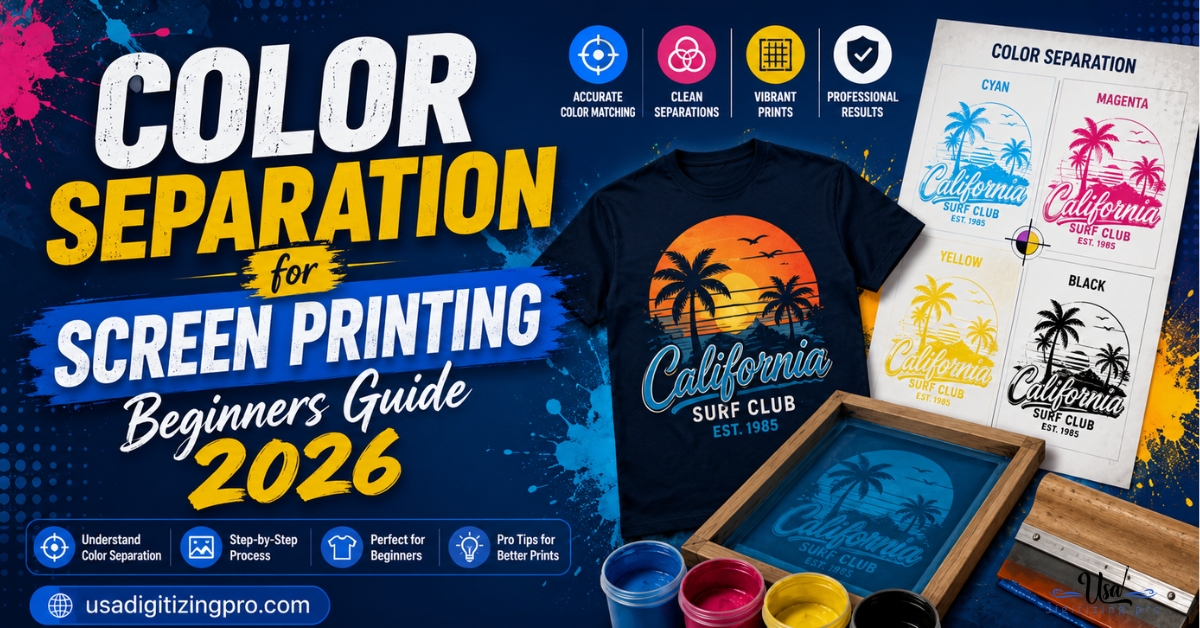
Color Separation for Screen Printing Beginners Guide 2026
Send a full-color JPG to a screen printer for the first time and you'll likely hear the same question back, is this.
Threading Stories Into Fabric: Handwriting Into Stitches 2026
Published September 21, 2026 | By USA Digitizing Pro Team Most embroidery digitizing is company logos headed for uniforms. A smaller and.
6 COMMENTS
[…] is a precise path rather than a blurred pixel edge. For background on why vector files matter here, the JPG to vector conversion walkthrough covers what changes when artwork moves from pixels to […]
[…] Low resolution or heavily compressed images force guesswork that shows up as wandering outlines. converting a raster logo to clean vector paths is the standard fix when only a small JPG […]
[…] match. Converting once to a proper master costs a fraction of that and ends the cycle permanently. the raster to vector conversion walkthrough covers what conversion actually […]
[…] A low resolution raster forces the digitizer to interpret edges the file never stated clearly. converting artwork to clean vector paths is what removes that interpretation […]
[…] edges. The file scales without pixelating and still produces poor results everywhere it gets used. the raster to vector conversion walkthrough covers what proper conversion actually […]
[…] sending two or three helps, because the clearer one can inform how the harder one is read. why source quality sets the ceiling covers the same principle on logo […]
Comments are closed.